
Getting started
Learn the main areas
Add a comic
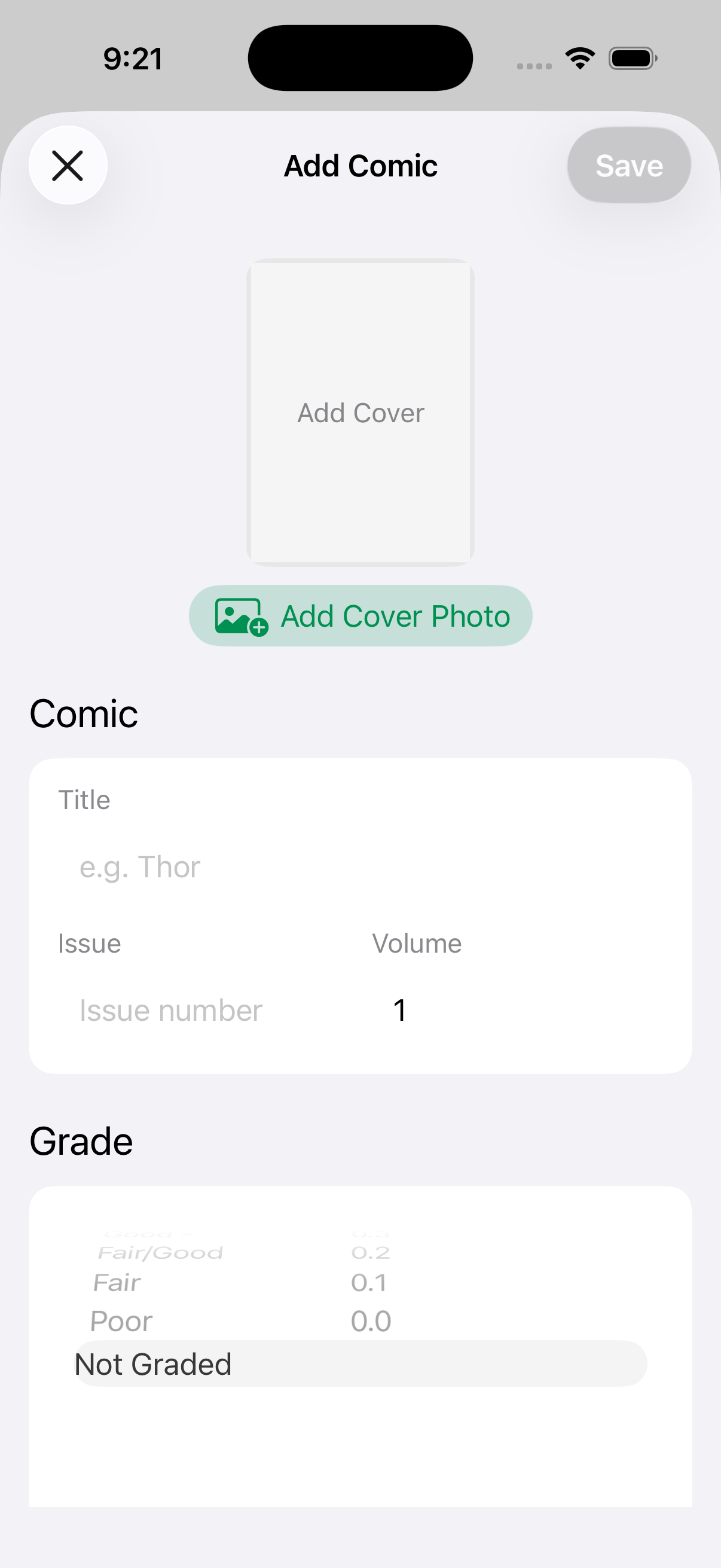
- Tap the + buttonFrom Collection, add a new comic and enter its title, issue number, and volume.
- Add the useful detailsNotes, grade, Reading or Selling status, custom Stack membership, and a cover image are all optional.
- SaveNear Mint records the comic locally and makes it available to search, Stats, Stacks, widgets, and Spotlight.
Collection
Browse and manage the collection
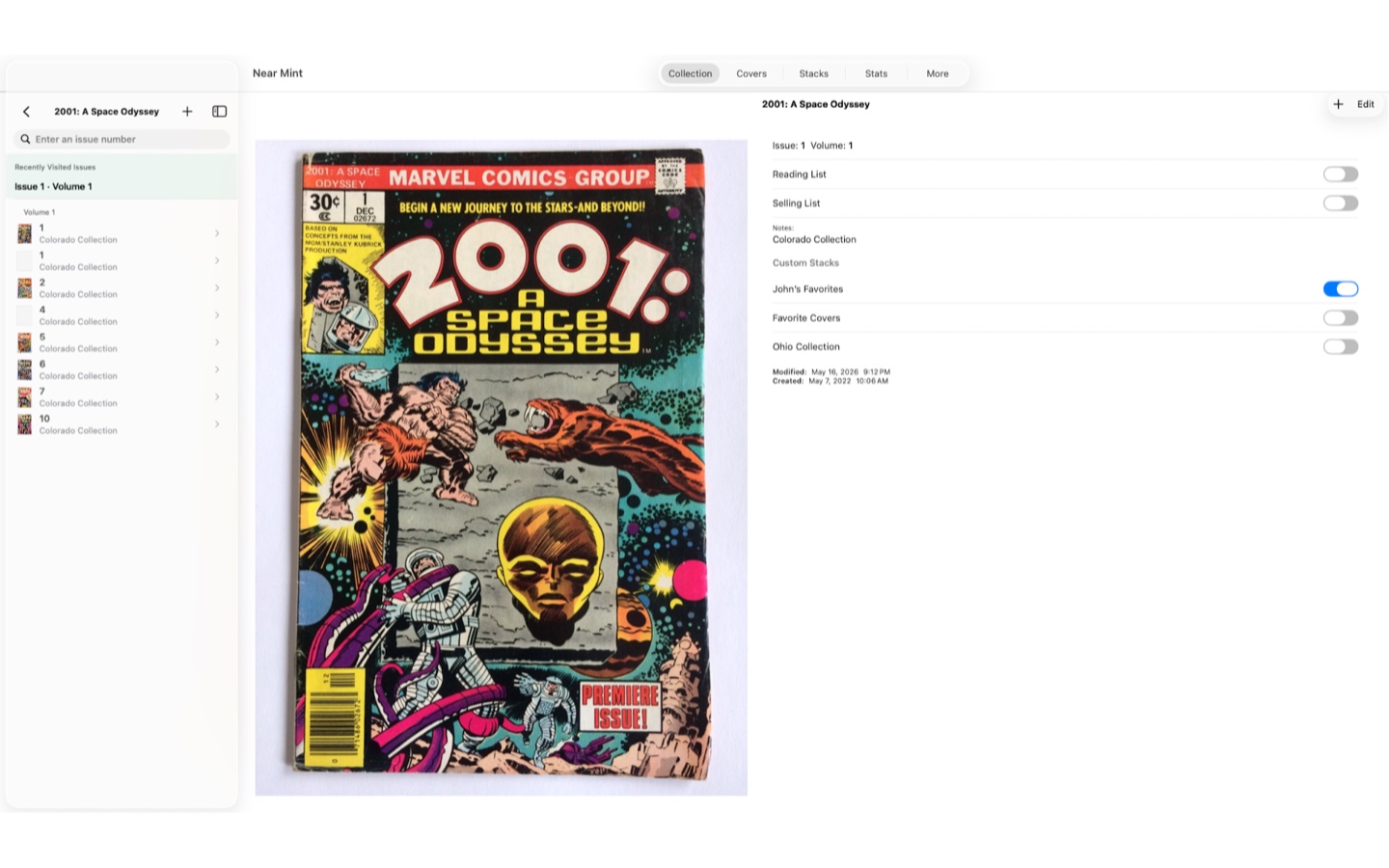
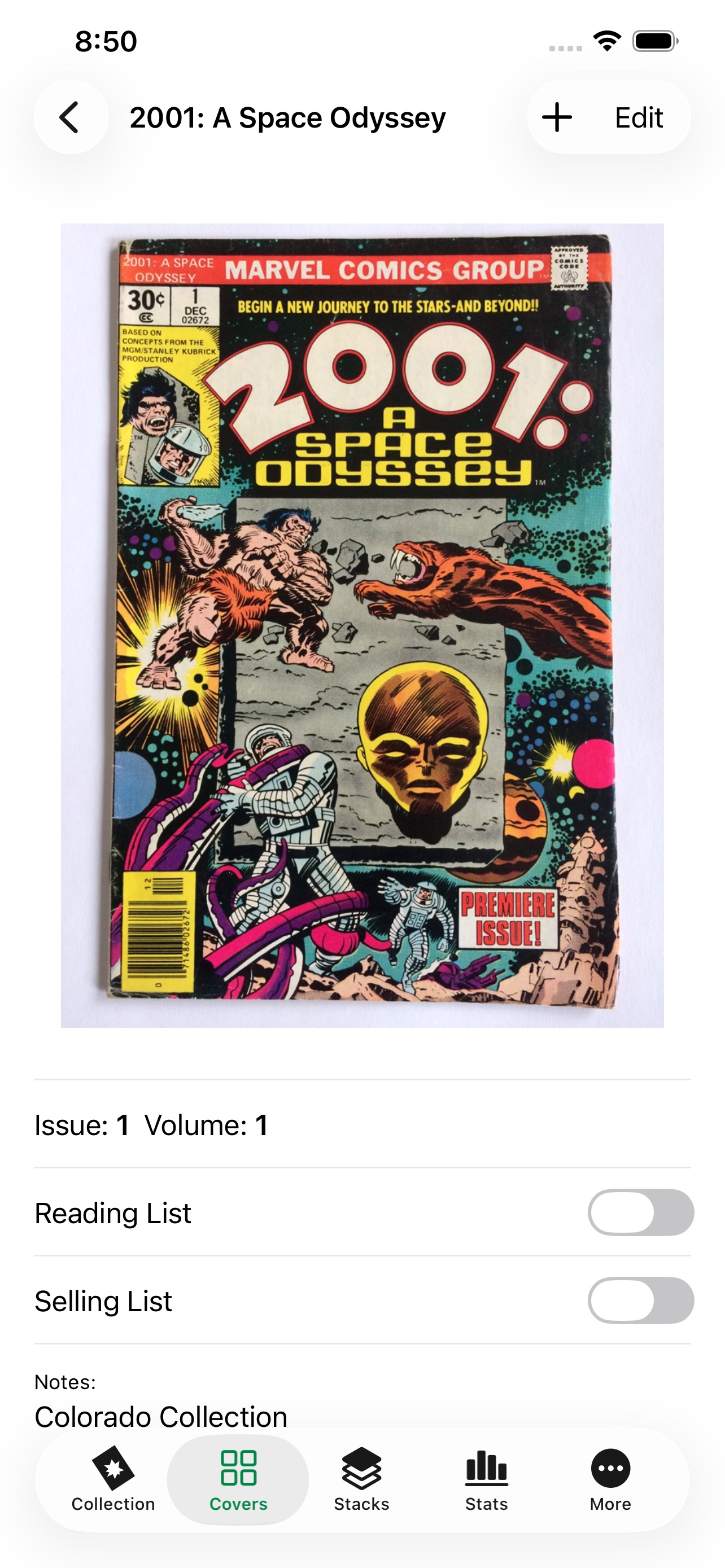
Collection is arranged by title. Open a title to see issues grouped by volume, then open any issue for its full cover and details.
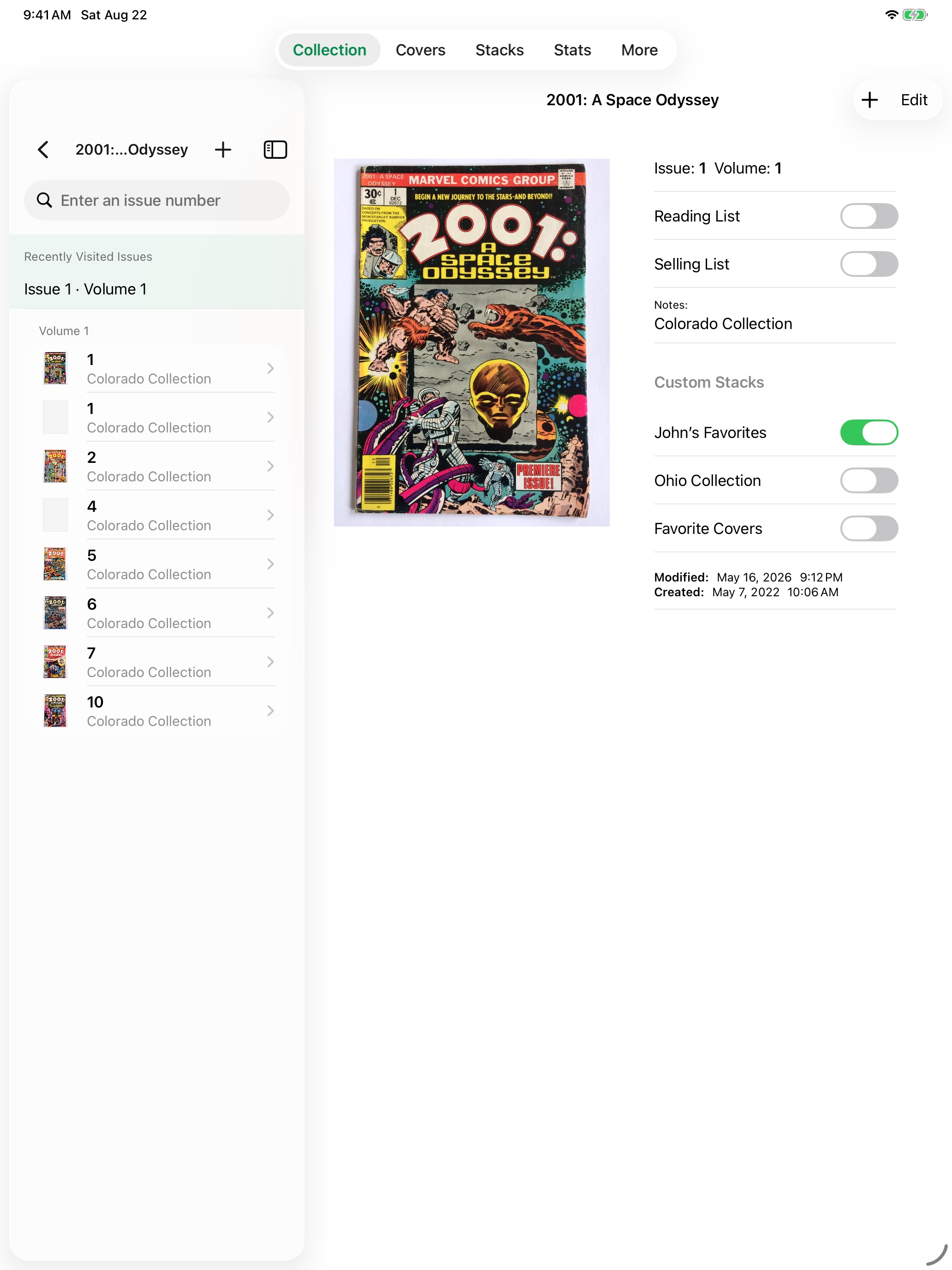
Recently Visited
Recent titles appear above the main Collection list. Inside a title, recent issues appear first. Choose how many Near Mint remembers—or clear the history without changing the collection—in More.
Swipe actions
Issue rows provide fast Reading, Selling, deletion, and missing-range actions. A deleted comic remains recoverable until it is permanently removed.
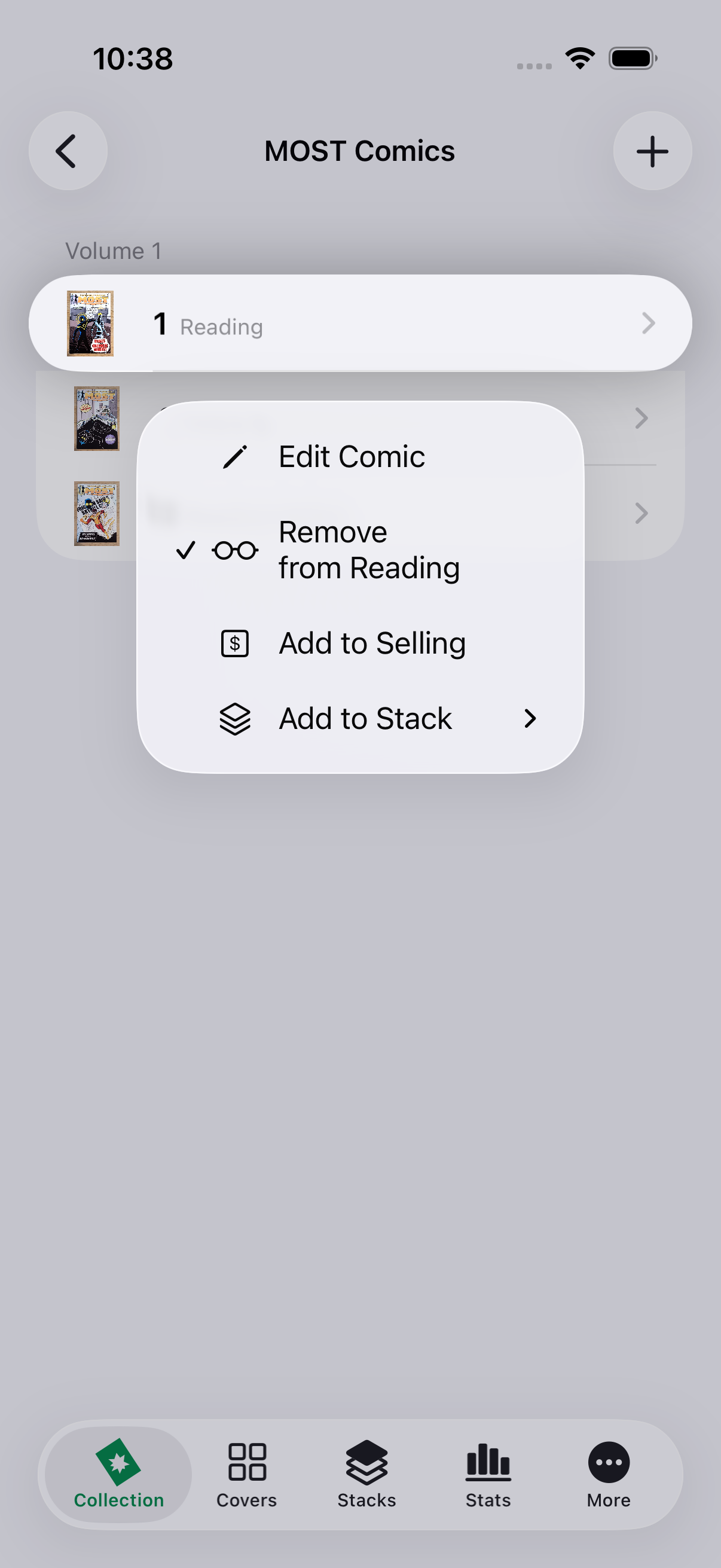
Touch and hold
Touch and hold a comic row or cover to edit it, change Reading or Selling status, or add and remove it from custom Stacks without leaving your place.
Search
Search the collection
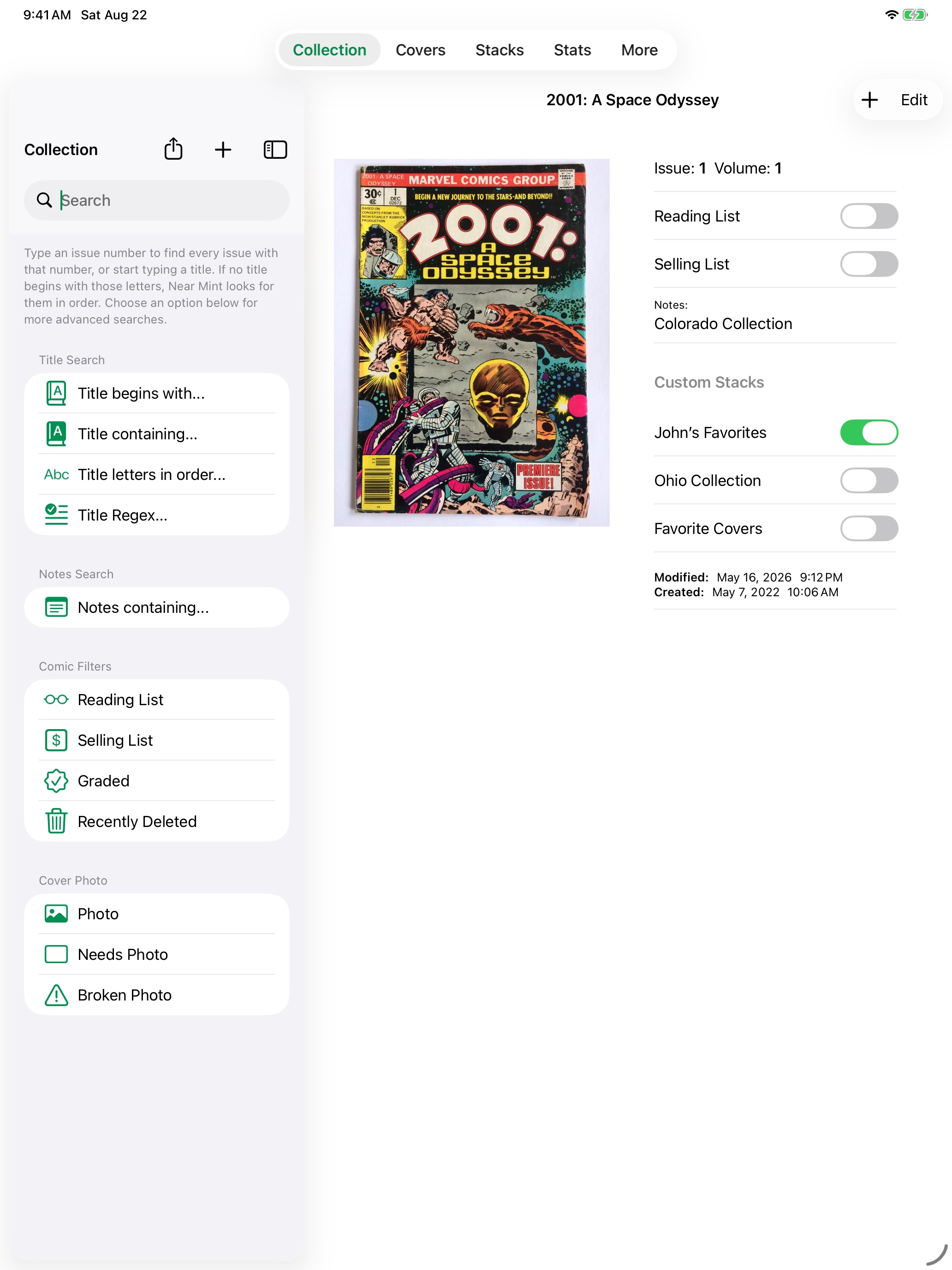
The main search field handles common searches immediately. Advanced filters add precision, and compatible filters stay combined until you remove them.
316
Exact issue number
A number by itself finds comics with exactly that issue number across every title.
amaz
Title begins with
Words search the beginning of a title, so ordinary searches stay predictable.
ASM
Letters in order
If no title begins with the text, Near Mint can match those letters in order—so ASM can find Amazing Spider-Man.
Layer advanced filters
Open Advanced Search to choose a title rule—Begins, Contains, Letters, or Regex—then combine it with Notes and comic-status filters.
- Search Notes independently of the title.
- Combine Reading, Selling, and Graded.
- Find comics with a photo, needing a photo, or pointing to a broken photo.
- Include Recently Deleted only when you explicitly ask for it.
- Use the same advanced search while adding comics to a Stack.
Collection
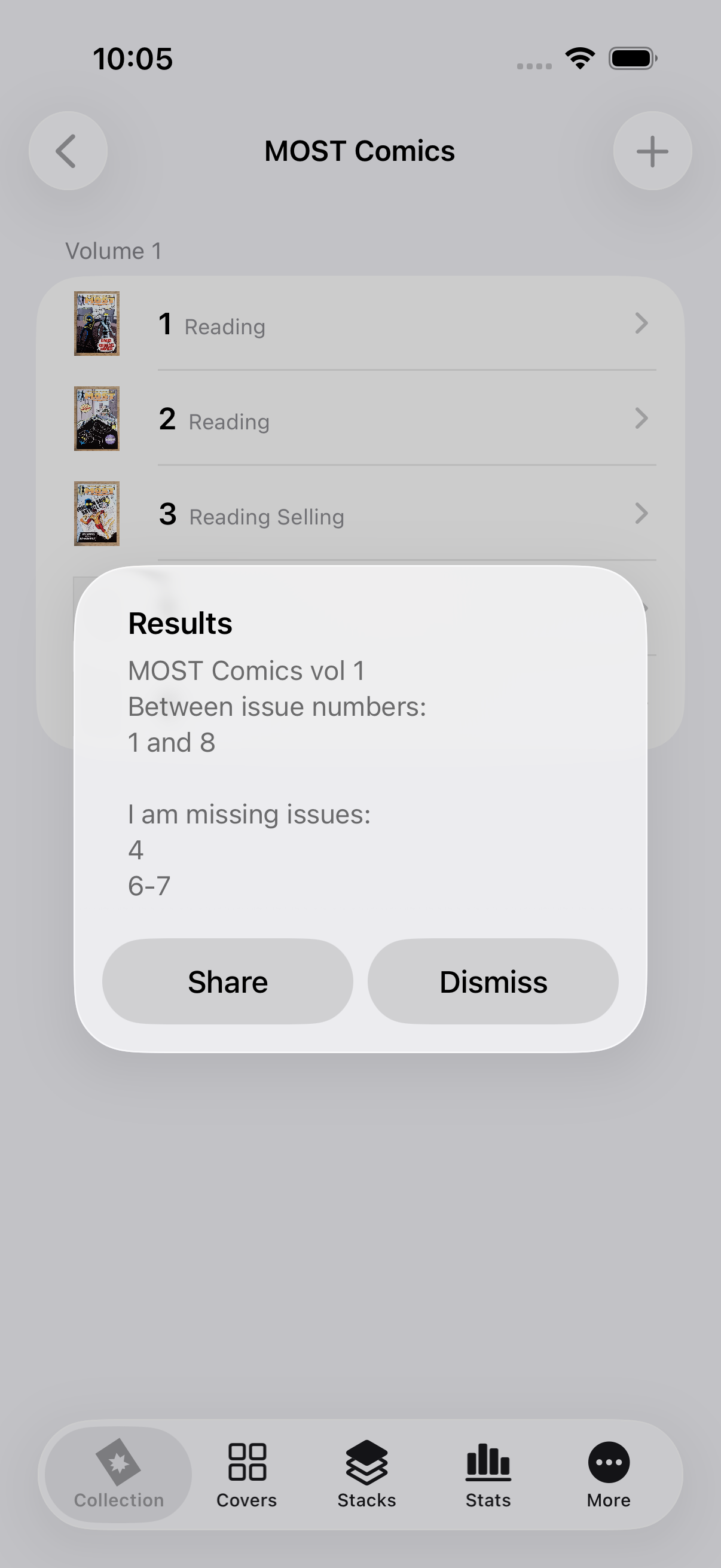
Find missing issues in a range
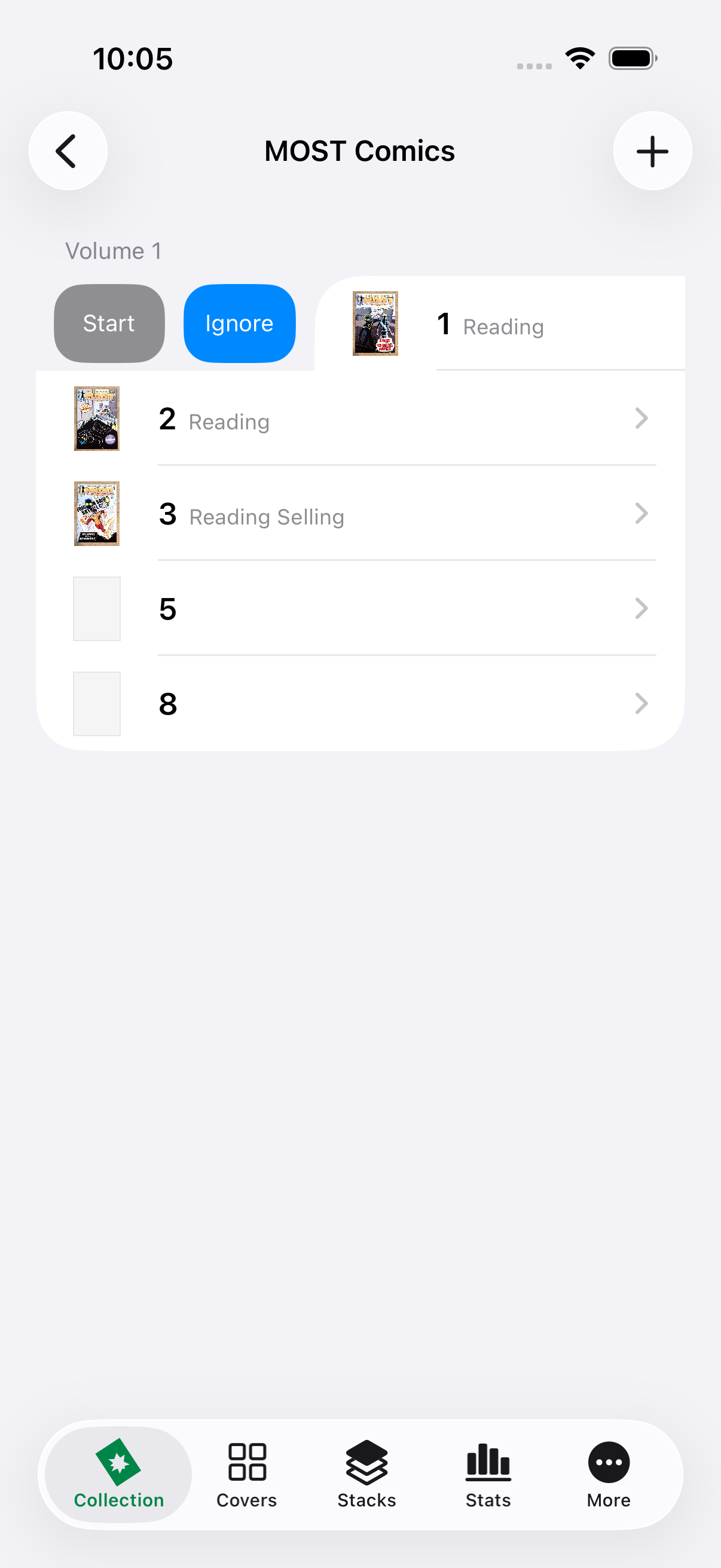
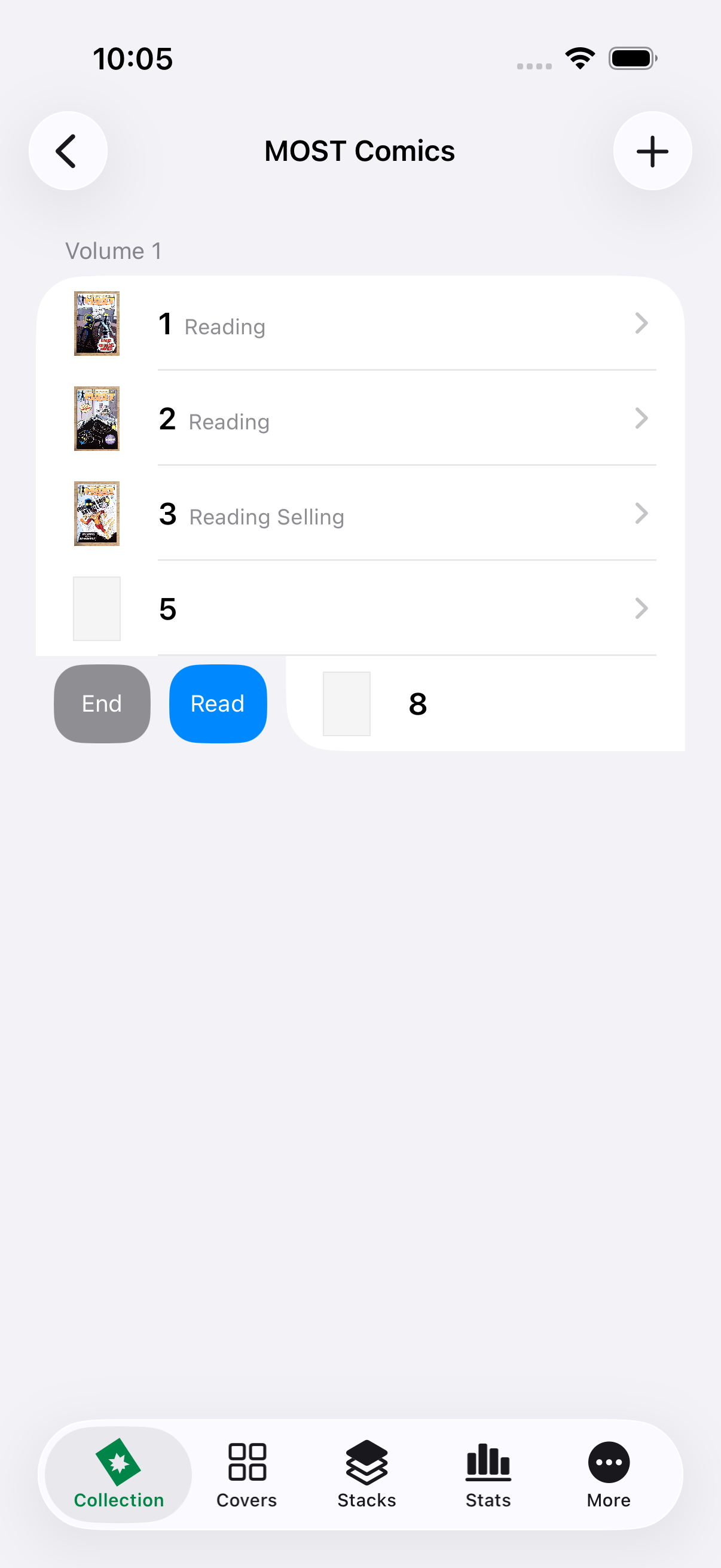
Choose two comics from one title and volume. Near Mint examines the issues you own between those endpoints and turns every gap into a clean, shareable list.
- 1
Open the title
Open the series you want to check. Issues are grouped by volume.
- 2
Select the range
Swipe right on one endpoint and tap Start. Swipe right on the other endpoint and tap End.
- 3
Review the result
Near Mint lists each missing issue. Consecutive missing issues are combined into ranges, and the result can be shared.
Covers
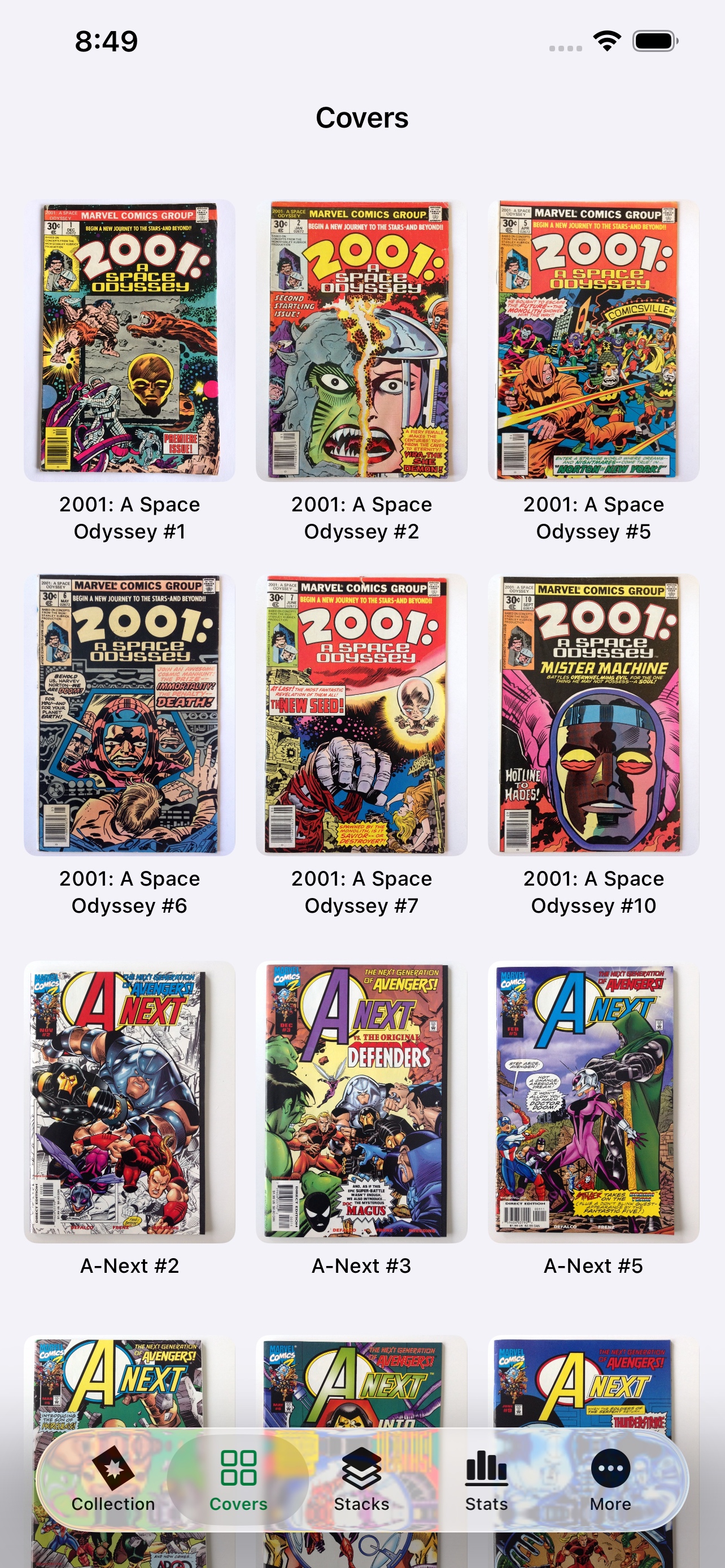
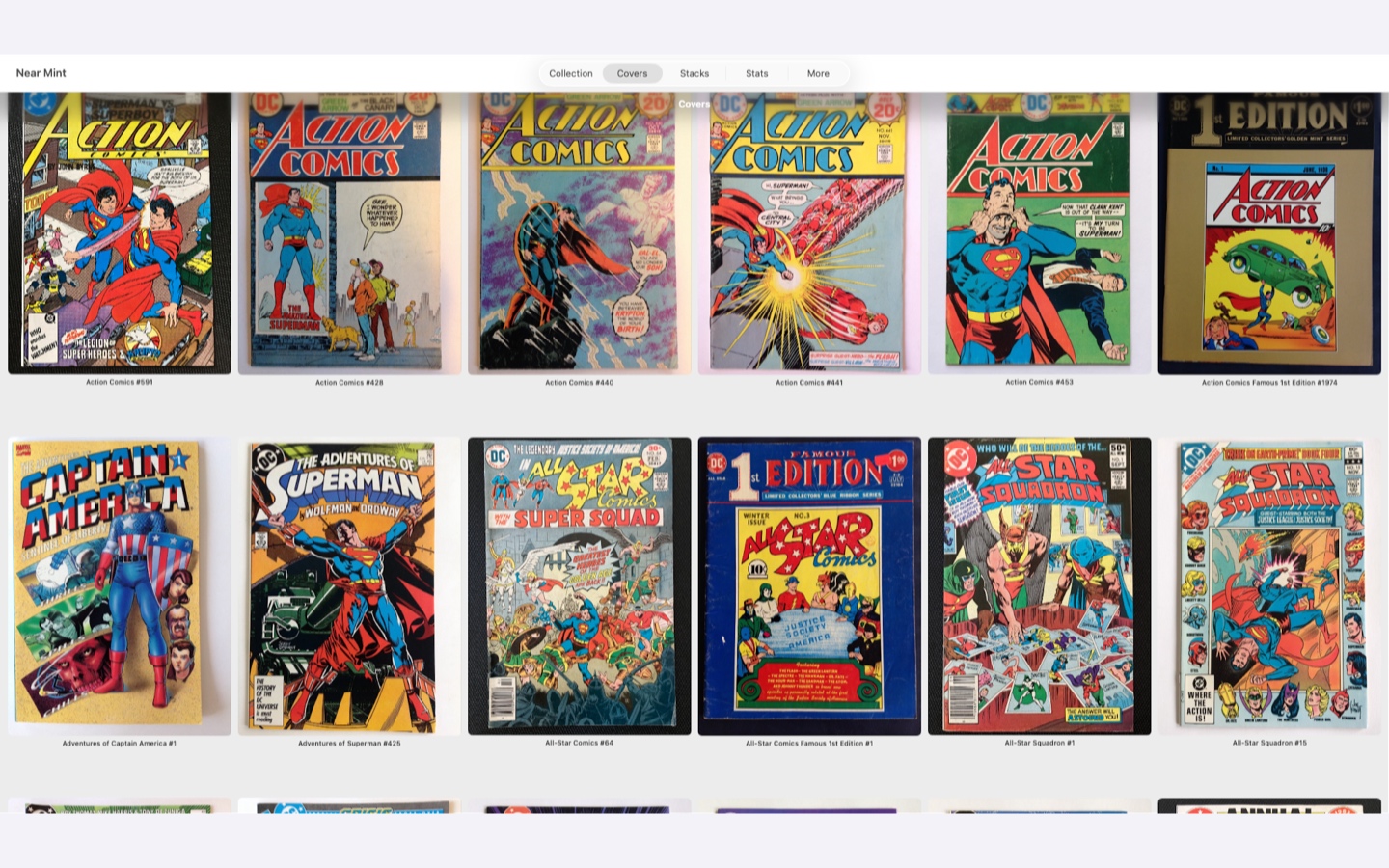
Add and view cover images
Cover files stay outside the collection database and remain ordinary local JPEGs. Near Mint uses them in lists, comic details, widgets, Apple Watch, and the dedicated Covers wall.
Add or replace
Tap the small cover area on an issue row, or edit the comic, to choose a photo from the library. On supported iPhones and iPads, the camera is available too.
Open and share
Open a cover full-screen and share the existing local JPEG. Near Mint does not recompress it just because you share it.
Automatic image policy
New images are stored as JPEG at 85% quality and limited to 3,000 pixels on the longest side. Smaller originals are never enlarged.
Stacks
Organize comics with Stacks
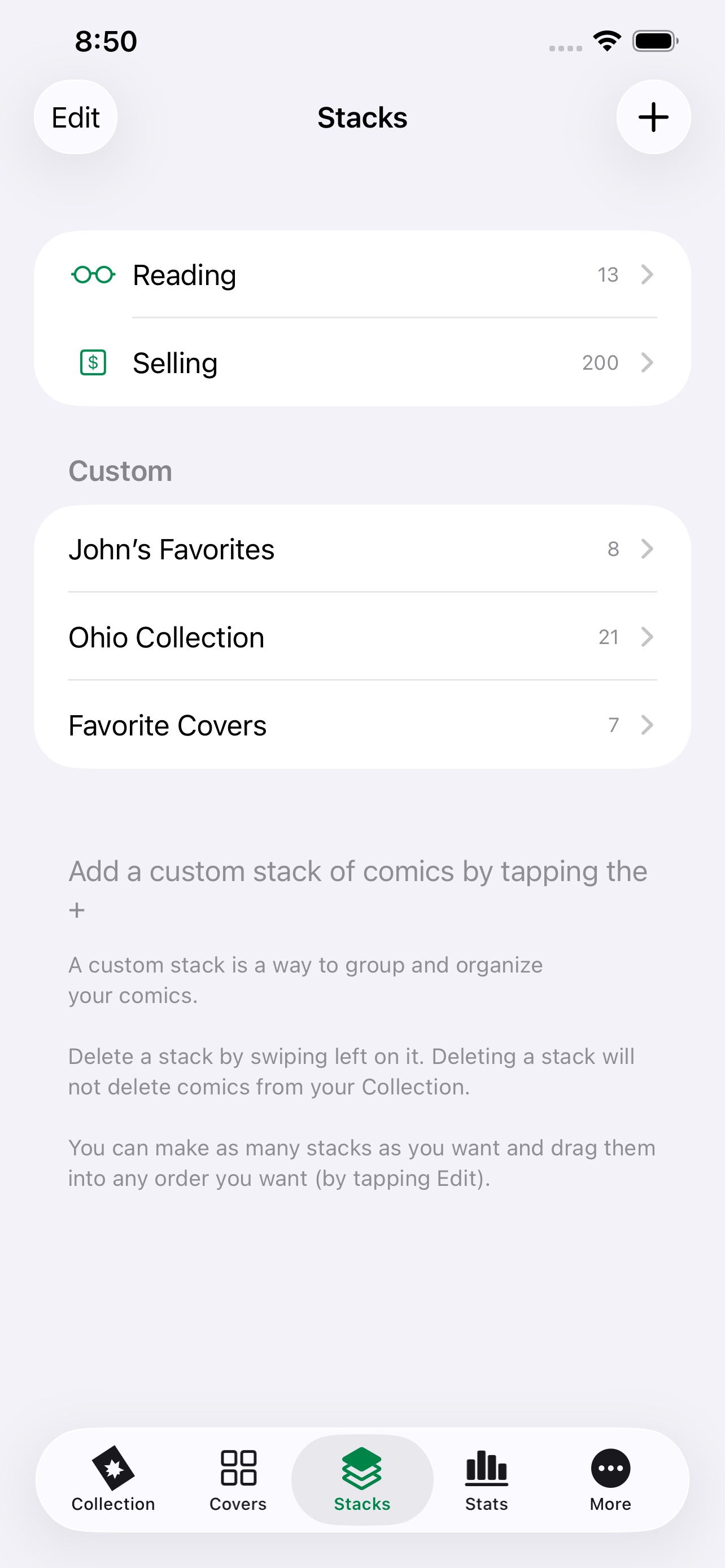
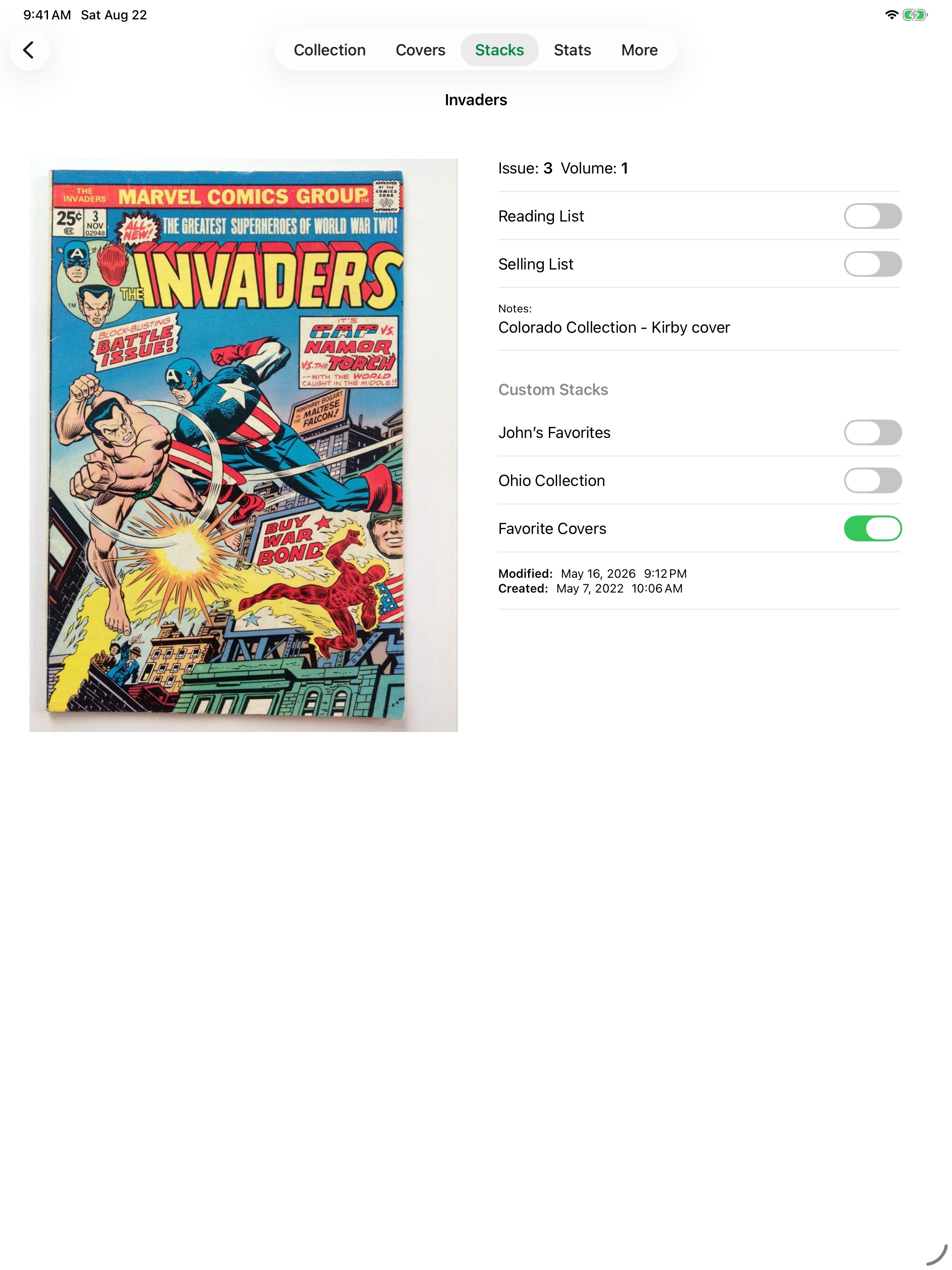
Stacks are flexible groups layered over the collection. A comic can belong to Reading, Selling, and several custom Stacks at the same time.
Stacks
- Reading
- A dedicated place for comics you plan to read.
- Selling
- A dedicated place for comics you plan to sell.
- Custom
- User-named Stacks that can overlap freely.
Add comics to a Stack
Tap + inside any Stack to open the multi-select picker. Search by exact issue number or title, use the letters-in-order fallback, or apply Advanced Search. Comics already in that destination stay out of the results.
Browse and share
Open a comic from a Stack and swipe left or right to move through the group. A custom Stack can also be shared as a list.
Stats
Use collection statistics
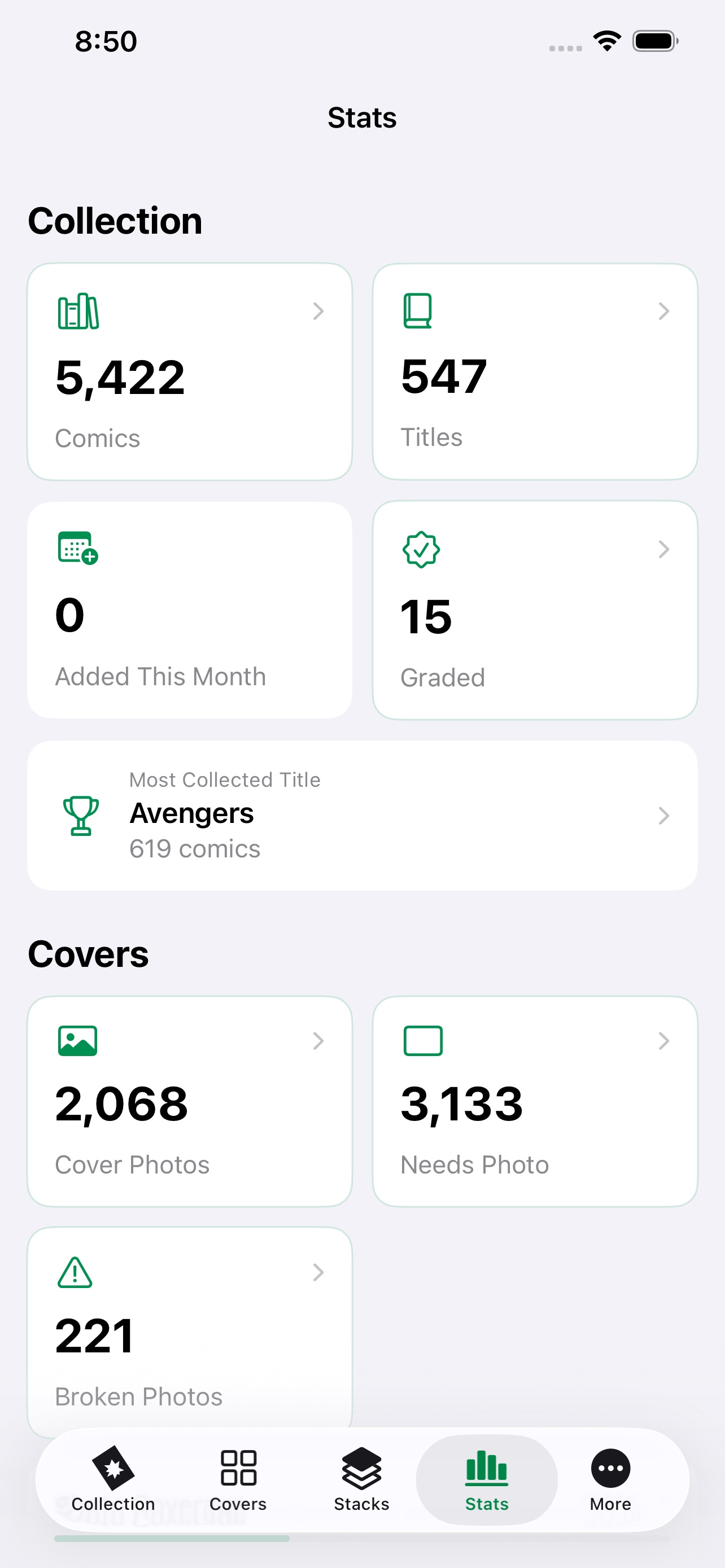
Stats summarizes the collection, but cards with chevrons are also navigation. Tap one to open the title, Stack, or filtered group behind the number.
Data
Manage iCloud, imports, and deleted comics
Near Mint treats collection records and cover files as two related but separate things. That keeps the database efficient and the images understandable.
Stored locally and eligible to sync through iCloud when available.
Remain local. Optional iCloud Covers keeps recovery copies and helps restore missing files.
iCloud Covers
Turn it on in More to offer locally stored referenced covers for upload. It is recovery and synchronization support—not an Optimize Storage system, and it does not intentionally evict local covers.
Cover Availability
More reports referenced files that are local, only in iCloud, downloading, being checked, or unavailable. Manual upload and download actions help repair a device.
Portable copy
Import and export .nrmt
A Near Mint document carries comic metadata, cover filenames, and custom Stack names. Import adds new UUIDs and missing Stack memberships without overwriting an existing comic that has the same UUID.
In the current format, the JPEG files are not bundled inside the .nrmt document. Keep cover recovery copies separately through iCloud Covers or your own file backup.
Recovery
Recently Deleted
Deleting a comic moves it out of ordinary collection views. Use the Recently Deleted Advanced Search filter to find and restore it. More can permanently remove all Recently Deleted comics and their cover images after confirmation.
Other devices and system features
Use Near Mint outside the main app
The same local-first collection reaches system search, automation, widgets, Apple Watch, and the larger screens of iPad and Mac.
Widgets
Add Featured, Stats, or Covers widgets to keep favorite art or useful collection numbers in view.
Siri & Shortcuts
Use Near Mint’s actions to add a comic or find a title. The exact Siri phrases are listed below.
Spotlight
Search indexed collection entries from the system and open the matching comic in Near Mint.
Mac
Use the same collection in a roomy multi-column layout with familiar keyboard and pointer interaction.
Add a comic
Say one of these phrases
- “Add comic to Near Mint”
- “Add a comic in Near Mint”
- “Add new comic to Near Mint”
Siri asks for the comic title and issue number, then adds it to the collection.
Find a title
Say one of these phrases
- “Search Near Mint”
- “Search my comics in Near Mint”
- “Find a title in Near Mint”
Siri asks which title to find, then opens it in Near Mint.
On your wrist
Apple Watch companion
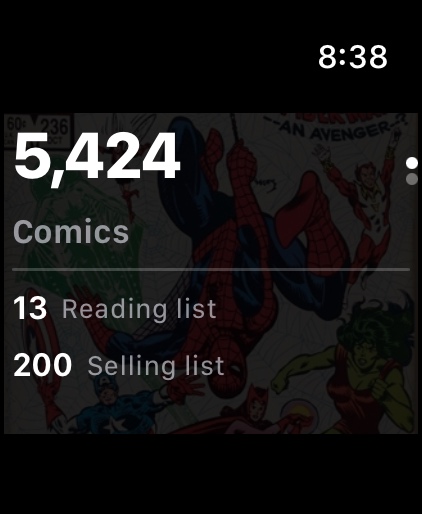
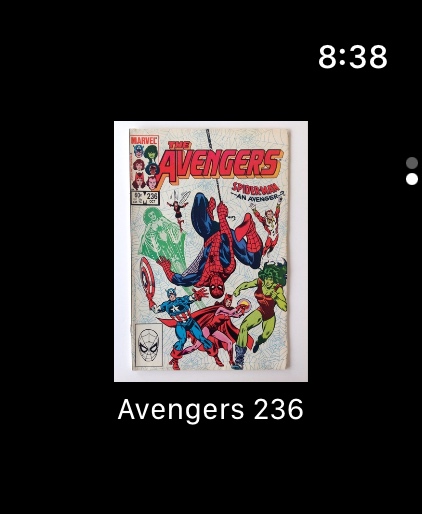
See cached collection totals and a featured cover without opening the main app. The Watch receives its latest snapshot from Near Mint on iPhone.
Quick reference
Common tasks
A few common goals and the shortest path to each one.
- Find every copy of issue #316
- Collection › Search › type
316 - Find Amazing Spider-Man with initials
- Collection › Search › type
ASM; Near Mint falls back to letters in order if no title begins with ASM. - Share a want list from gaps
- Open a title › reveal the first endpoint’s leading actions › Start › repeat on the last endpoint › End › Share.
- Find every comic lacking a cover
- Stats › Needs Photo, or Collection › Advanced Search › Needs Photo.
- Restore a deleted comic
- Collection › Advanced Search › Recently Deleted › swipe to Restore.
- Check whether your covers from another device on the same iCloud account have reached this device
- More › Cover Storage › Cover Availability.